

Install
The plugin runs on KiCad 7, 8, 9 and 10, on Linux, macOS and Windows. It needs nothing else installed: it uses the Python and wxPython that come with KiCad.1
Download the plugin
Get
koppar-kicad-0.1.0.zip from koppar.ai/koppar-kicad-plugin.2
Install it from KiCad
In KiCad, open the Plugin and Content Manager, choose Install from File… and pick the zip.
3
Restart the PCB editor
The Koppar button is on the PCB editor’s top toolbar, and under Tools → External Plugins.
Add your API key
Autoroute works on small boards without an account. Larger boards, every other task and the assistant use your account’s API key:- Make a key at app.koppar.ai under Settings → Design from your own AI agent.
- In the Koppar window, press Add API key in the header and paste it.
Run a task
Save the board first: Koppar keeps its jobs in a.koppar/ folder beside the board file. Then press Koppar.
- Pick a task in the sidebar. Tasks marked with a key need an account.
- Choose the nets: all nets, the ones not connected yet, the ones selected in the editor (parts, pads or tracks), or a list you pick. Every other option of the task is under More options.
- Run. The board is sent as it is in the editor, unsaved edits included, with its
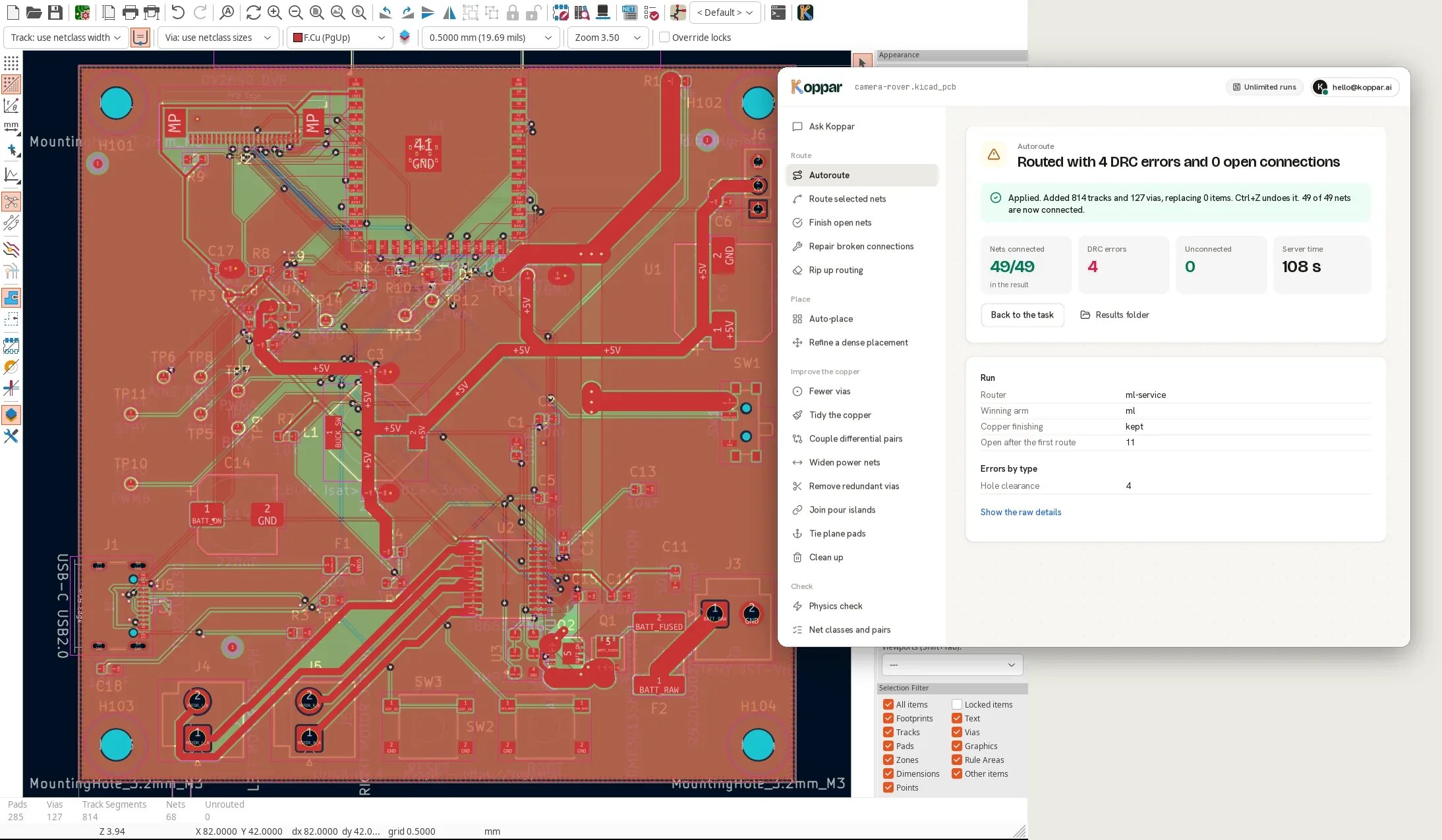
.kicad_proand.kicad_dru, so the router follows your design rules and net classes. You can close the window while it runs; the Koppar button brings the run back. Autoroute can be stopped. - Read the result: a headline, the numbers before and after, and the details. Nets and parts in the result are links that light the net up or zoom to the part on the board.
- Apply to board. Copper tasks bring back the tracks, arcs, vias and pours of the nets they worked on. Placement tasks move the footprints that are not locked, then bring the copper. One Ctrl+Z undoes it.
KiCad’s own design-rule check, plots, 3D viewer and STEP export stay where they are, in KiCad.
Account tasks work on a copy of your board in your Koppar account. Open in Koppar in the header shows that copy in the app. Every run sends the board as it is in the editor first, so a task always works on what you see.
Ask Koppar
Accounts with runs left get Ask Koppar at the top of the sidebar: a conversation about the board you have open. Ask why a net does not route, whether the board can have fewer vias, or what to change, and Koppar does the work with the same board tools. A change it makes waits for your Apply to board, like any other task.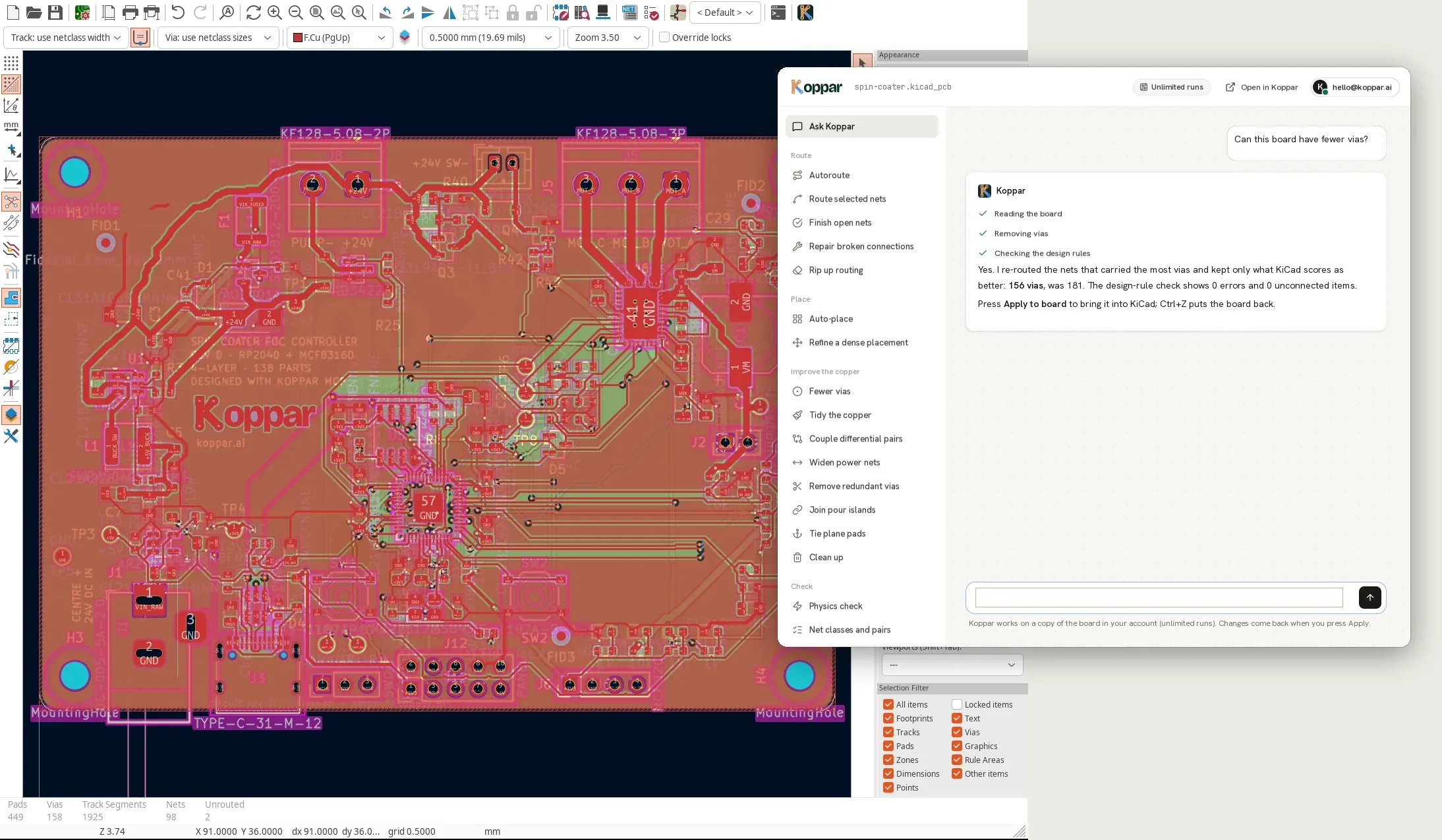
A new board from a description
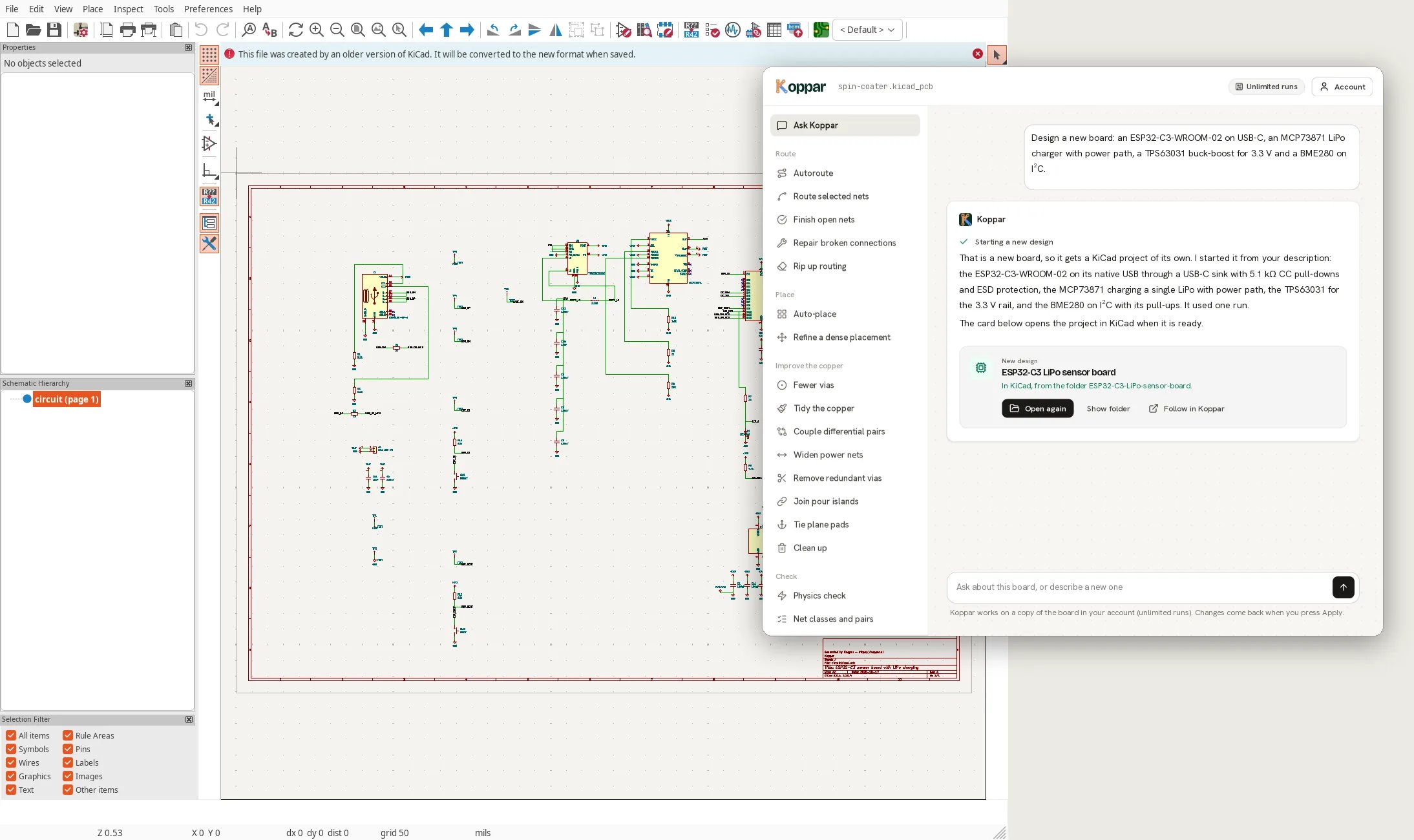
Ask Koppar can also design a new board. Describe what it must do (its function, the parts you have in mind, its interfaces, power and size) and Koppar designs it with the same pipeline as the studio: it researches the parts, writes and checks the schematic, then places and routes the board.- A new design uses one of your runs and takes 10 to 40 minutes. Koppar starts one when you ask for a new board, not to change the one you have open.
- A card in the conversation follows the run, also after you close the window and open it again. Follow in Koppar opens the design in the app.
- When it is done, Open in KiCad asks where to put the project, unpacks it into a folder of its own and opens it in KiCad: schematic, board, project file and rules, the libraries the design uses, and the BOM.
What is sent and kept
The settings file is
~/.config/koppar/kicad-plugin.json on Linux, in ~/Library/Application Support/Koppar/ on macOS, and in %APPDATA%\Koppar\ on Windows.
KiCad versions
Koppar writes results with KiCad 10, which KiCad 7, 8 and 9 cannot open. On those versions the plugin never hands the result to KiCad’s file reader: it takes the result’s copper into your board’s own file, in that version’s format, and reads placement from the result as text.
Questions
I added my key but there is no Ask Koppar
I added my key but there is no Ask Koppar
The assistant is offered while your account has runs left. The header shows how many you have; when it says 0, the board tools still work and Ask Koppar comes back with your next runs.
Autoroute says the board needs an API key
Autoroute says the board needs an API key
A board past the free size runs only with an account: routing it takes minutes of server time. Add your key and run it again.
How do I undo what Koppar did?
How do I undo what Koppar did?
Ctrl+Z, once. Applying a result is one step on KiCad’s undo stack, whatever it changed.
Can it edit my schematic?
Can it edit my schematic?
No. KiCad runs plugins like this one only in the PCB editor. The assistant works on the board; a new design comes back as a complete KiCad project of its own.